
Bing Maps & Other Maps Providers

Bing just announced a new routing engine for Bing Maps. Bing Maps is actually really cool, it’s something I haven’t used so much since I’m so used to using Google Maps but I think I might try using it more in the future.

Funny, back in the early-2000’s, it was either MapQuest or Yahoo Maps and Google was still making a name for itself, now it seems to be a huge “go-to” when it comes to mapping. It helps when Apple’s iPhone uses Google Maps by default in their Apps. This may change with the iPhone 5 with rumors saying that Apple may come up with their backend solution since they’ve bought a few map companies, we’ll see I guess. It’ll be nice to see Apple back-off on their Google support.

GPS and Mapping have come a long way since the early/mid-2000’s. In 2004/2005, I actually bought a USB-powered GPS that I hooked into my laptop and used Microsoft Streets with the GPS. That was so cool to have live GPS navigation but it was kind of clunky to have a laptop and a GPS helping you navigate even when your friend is holding the laptop. Then Garmin/Magellan/TomTom all came out with their GPS handhelds a year later which basically made my computer USB-powered GPS obsolete (It was a good run though!)

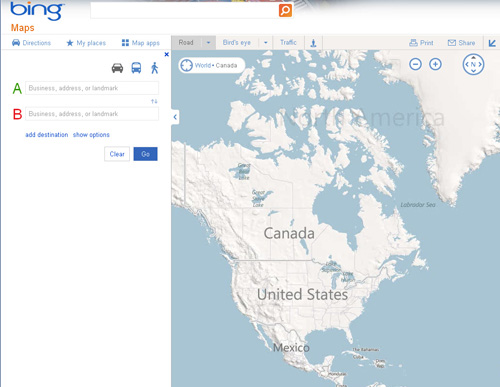
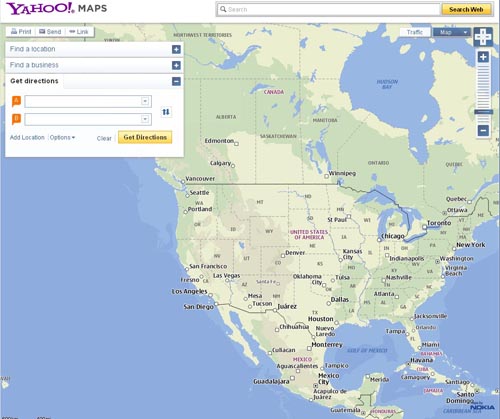
I was looking at the different Map Platforms that the “Big 4” (Bing, Google, Yahoo, MapQuest) and they’re all so similar. I personally like Bing’s the most, though I’m biased since I’m a Bing fanboy (Granted, I don’t use their Maps Platform much, but I do use their search engine by default on my home computer and iPhone). It’s the most simplistic, it kind of goes along with the Bing theme and it’s just aesthetically pleasing. I think I like Yahoo’s the second most with its style and layout. MapQuest comes in at #3, though I’ve never been a big fan of them, I used Yahoo Maps over MapQuest back when it was basically those two Maps Platforms in the early-2000’s. Finally, comes Google at #4. It’s interesting that the Maps Platform I used the most has the style/layout that I like the least. I guess that’s Brand Equity for you.

Bing Maps


AT&T for another two years

I bit the bullet and renewed my contract with AT&T for two more years, 12/26/11 to 12/26/13. I must say the iPhone 4S is pretty incredible and iCloud is pretty awesome.

Which… Smart Phone & Carrier?

My two year contract is up with AT&T finally and now I’m in the market to pick a new phone and to potentially switch carriers… There’s a few issues though, first, I’m grandfathered into AT&T’s unlimited data plan and I really don’t want to give that up since I think 2 GB will go really fast. Next, I want to switch to Verizon since I hear coverage is better (well, it has to be better since AT&T in the Chicago suburbs is terrible). Funny, prior to switching to AT&T, I’d never heard of a “dropped call.” Now “dropped calls” have become a part of my daily life…

The problem with Verizon is that I really want to stick with the iPhone but the 4S is a 3G phone which means it doesn’t support “Talk and Surf” unlike the other Verizon Droid phones which are all mostly 4G enabled with the super fast LTE network. Finally, the Droid Phones are pretty awesome I hear and ridiculously fast, also they allow some great features like the HDMI cable output and the micro-SD slot, both are really useful features but at the end of the day, it’s a Droid vs. iPhone and I hate to say it… but a lot of my important stuff is Apple heavy :(.

To that point, iPhoto is amazing and iTunes is pretty damn nice and I also own a piece of shit MacBook that lasts for two hours on a good day (they marketed 7 hours when it first came out… my ass, lol) which is helpful when using Apple products. I have yet to find something as nice as iPhoto and iTunes on the PC but then again, perhaps I’m “tunnel visioned” and refuse to look for something better since I’m used to it. Also, I’m so used to the iPhone that switching to the Droid just seems like inconvenience that I’m not sure if I want to deal with. I’m sure the learning curve is pretty fast, plus I’m wicked smart so I’m sure I will catch on pretty fast, but I gotta say, Droid’s UI isn’t as aesthetically pleasing as Apple’s UI, I mean, don’t get me wrong, the Droid’s UI is clean, but Apple’s is “better.”

Decisions… There’s so many other finer points I need to figure out, such as cost, the company discounts I can get with either carrier, text messaging, etc. Damn you Apple! Why couldn’t you just release a 4G phone and make my decision a lot easier!

droid bionic pictureiphone 4s picturedroid razr picture

Verizon Wireless LogoAT&T Logo

How to Switch Web Hosting Providers

Since Made2own Sucks, I figured I’d write a post on how to change web hosts if you use the WordPress CMS. I’m not saying this is the best way to do it but this was how I did it and it worked.

1. Find a new web hosting provider. There is a big forum all about web hosting providers where you can get lots of information about different web hosting providers.
2. Download your files from your web host using some sort of FTP Software. I use FileZilla since it’s a great program. Be careful not to pull too many files at once because on some servers, they ban you IP if you pull too many files down too quickly.
3. Export your WordPress files by going to Tools and then clicking on “Export.”
4. Export your SQL database (I was told to do this, but I never needed to import them later on, but better safe than sorry)
5. Change name servers of your domain, i.e. ns1.madeown.com to whatever the name servers are for your new web host, they should be in an e-mail they sent you after you signed up with the service.
6. Install WordPress on your web host by transferring all of your original WordPress files to the server and then follow the WordPress Installation process.
7. Assuming you’ve installed WordPress correctly, you can then click on Tools and then hit “Import” and find your old exported file and bring that in. All your posts and such will be as they were. You will have a “Hello World” post from the new installation but for the most part, everything should be as it was.
8. You should be done!

Some issues that I had in the process was some of the files I had made didn’t seem to convert correctly to the new server. For me this was mostly the theme layout everything else was basically the same. You might want to transfer over your old header.php and other files if you found the WordPress installation changed your header.php.

How to back up and transfer your Microsoft Exchange e-mail account from one computer to another

Since I’m graduating from Purdue, I will no longer have access to my Exchange account after a few months so I wanted to know how to backup all my files since I organize all my e-mails.

After reading a few websites that gave little hints here and there, but nothing fully comprehensive, I decided to write this blog article so it will tell people how to do it.

Note: This process will remove all files from your Exchange server to your Personal Folder. Only do this when you’re done with your Exchange account.

With Outlook 2007:
1. Go to Tools –> Account Settings
2. Click on the “Data Files” tab and click “Add…”
3. In the dialog box that pops up, click on “Office Outlook Personal Folders file (.pst) and click OK
4. Find a folder to place your .pst file and then click OK. This .pst is your Personal Folder for your e-mail
5. Close the Account Settings dialog box
6. Now go to your e-mail and drag all of your Exchange e-mails to your Personal Folder
7. Close Outlook 2007 fully
8. Find the place where you saved your .pst file and drag it to a jump drive or copy it to a CD/DVD
9. Copy the .pst file over to the other computer
10. Open up Outlook 2007 on the other computer
11. Go back to Tool –> Account Settings
12. Click on the “Data Files” tab and click “Add…”
13. Find the .pst file you just copied over
14. Click OK and close out the dialog boxes
15. Your files should now be fully transferred